Blog · SMTP & Email
How to Set Up SMTP to Send Invoices from Your Desktop App (2026 Guide)
Sending invoices from a desktop app used to mean exporting a PDF, opening your webmail, attaching the file, writing a message, and hoping you did not forget to CC yourself. SMTP kills that whole loop: the invoice leaves your app directly, from your own email address, using your own outbound mail server. This guide walks you through the exact setup inside Hoursbill for Gmail, Outlook, and a custom domain — and how to fix the three errors that trip up almost everyone.
Why send invoices over SMTP
Freelancers usually settle for one of two workflows: forward the PDF from webmail, or hand it off to an accounting SaaS that sends on their behalf. Both work; neither is ideal. Webmail wastes time. SaaS solutions send from their servers, which means the invoice comes from an address the client does not recognise, sometimes ends up in spam, and links back to a portal the client has to log into.
Sending over SMTP from your own desktop app gives you three concrete wins:
- The email comes from you. Same domain, same sender name, same reply-to. Clients recognise it instantly.
- Better deliverability. Emails travel through your existing mail server, which already has proper SPF, DKIM, and DMARC records for your domain.
- Fewer steps. Track time, generate the invoice, hit send — no context-switching to a browser.
Before you start: what you need
- Your SMTP host (e.g.
smtp.gmail.com,smtp.office365.com, or your hosting provider's SMTP server). - The port (usually
587for STARTTLS or465for SSL/TLS). - A username, which is almost always your full email address.
- A password — for Gmail and Outlook.com this must be an App Password, not your account password.
Keep these five values ready in a text editor. You will paste them into Hoursbill in the same order.
Step 1 — Open the Email settings tab
Launch Hoursbill and open Settings from the left sidebar. Click theEmail tab across the top. You will see two side-by-side panels:Email compose defaults on the left and SMTP / transport on the right.
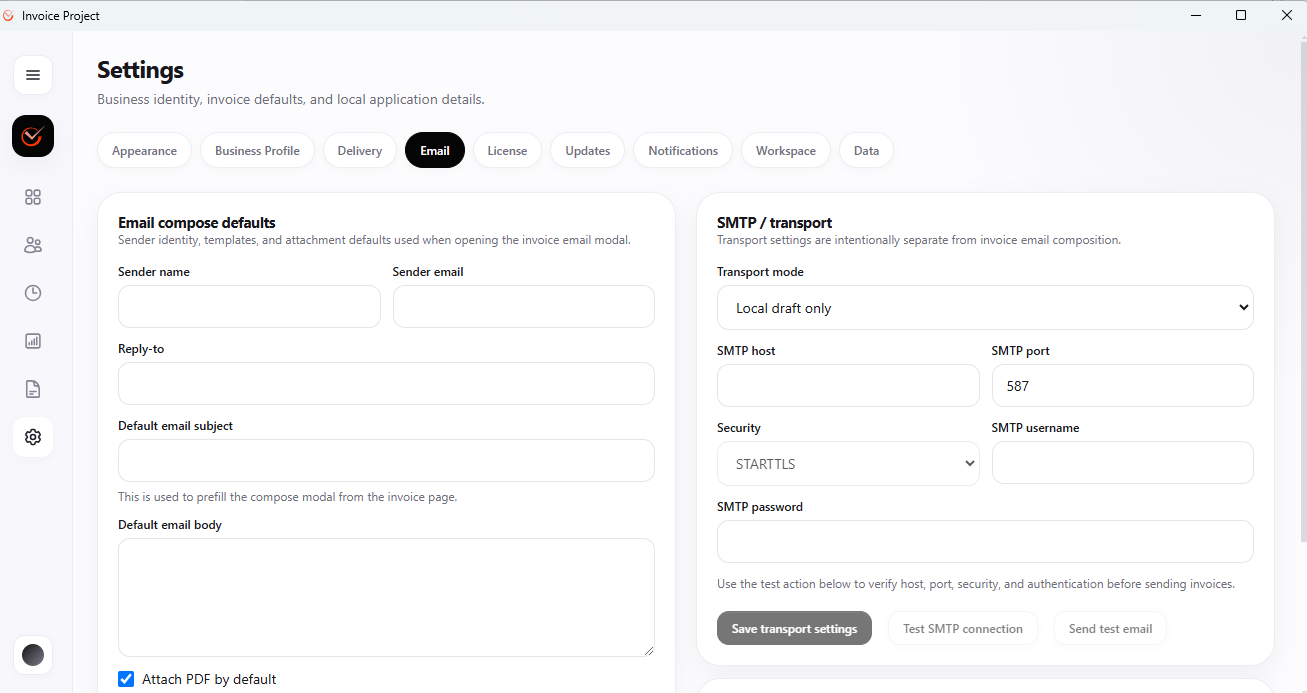
The two panels are intentionally separate. Composition defaults (sender name, subject line, default body) do not depend on the transport. You can change your SMTP provider without touching your email templates.
Step 2 — Fill in the composition defaults
Fill the left panel first — it is the fastest way to test that everything else works:
- Sender name — how your name appears in the client's inbox. Use your business name, not just a first name.
- Sender email — the address the invoice is sent from. This must match a mailbox on your SMTP server.
- Reply-to — optional; useful if you send from an alias but want replies to land in a different inbox.
- Default email subject — a short template like
Invoice #{number} from {business}. - Default email body — the message the client sees. Keep it short and professional.
- Attach PDF by default — leave this checked. Most clients want the PDF attached, not a link.
Step 3 — Configure the SMTP transport
Switch to the right panel and set Transport mode to something other than Local draft only. That mode saves the invoice email as a draft on disk but never sends. As soon as you pick a real transport, the SMTP fields below become required.
Gmail (personal or Google Workspace)
| Field | Value |
|---|---|
| SMTP host | smtp.gmail.com |
| SMTP port | 587 |
| Security | STARTTLS |
| SMTP username | Your full Gmail address |
| SMTP password | An App Password from your Google account |
App Passwords are mandatory on Gmail — regular account passwords are refused by the SMTP server. Generate one at myaccount.google.com/apppasswords. You must have 2-step verification turned on for the option to appear.
Outlook.com / Microsoft 365
| Field | Value |
|---|---|
| SMTP host | smtp.office365.com |
| SMTP port | 587 |
| Security | STARTTLS |
| SMTP username | Your full Outlook / M365 address |
| SMTP password | An App Password from Microsoft Security |
Microsoft has been progressively disabling basic authentication. If you get an error about authentication mechanism disabled, your tenant administrator needs to enable SMTP AUTH for your mailbox, or you need to switch to a mailbox on a provider that still allows it.
Custom domain (hosted email)
If you send from your business domain (e.g. you@your-company.com) and your email is hosted by cPanel, Zoho Mail, FastMail, ProtonMail Bridge, or a similar provider, look up the SMTP settings in that provider's documentation. Typical values:
- SMTP host:
mail.your-company.comorsmtp.your-company.com - Port:
587(STARTTLS) or465(SSL/TLS) - Username: usually the full email address, sometimes just the local part
- Password: your mailbox password (no App Password needed on most providers)
Step 4 — Save and test
Click Save transport settings to persist your configuration locally, then click Test SMTP connection. This does a full handshake with your SMTP server without sending an email:
- ✅ Success — host is reachable, TLS handshake worked, credentials accepted. You are ready to send.
- ❌ Failure — the error message tells you which step failed. Jump to the troubleshooting section below.
Once the connection test passes, click Send test email. Enter your own inbox as the recipient. If it arrives within a minute, everything is wired up correctly.
Step 5 — Send your first real invoice
Open the Invoices tab from the sidebar, generate a draft from your tracked time, then use the invoice email modal. Hoursbill pre-fills the subject and body from your defaults, attaches the PDF, and sends through the SMTP server you just configured. The invoice arrives in the client's inbox from your own address, exactly as if you had composed it manually.
Troubleshooting the three most common errors
1. "Authentication failed" / "Invalid credentials"
Almost always a password issue. For Gmail and Outlook.com, you must use an App Password. Regular passwords are silently rejected by the SMTP server. Also double-check the username — it is usually the full email address, not just the part before the @.
2. "Connection refused" or "Timeout"
Either the port is wrong (try 587 or 465), or your local firewall / ISP is blocking outbound SMTP. Some residential ISPs block port 25 by default; ports 587 and 465 are typically open. If you are on a corporate network, ask IT.
3. "TLS handshake failed"
Usually a mismatch between Security and Port. STARTTLS goes with 587; SSL/TLS goes with 465. Swap them and try again. If it still fails, your SMTP host may require a specific TLS version — check the provider's documentation.
Frequently asked questions
Do I need SMTP to send invoices from Hoursbill?
No. You can stay in Local draft only mode, export the invoice as PDF, and attach it to an email from your usual client. SMTP just removes that manual step.
Can I use my Gmail account as the SMTP server?
Yes — smtp.gmail.com on port 587 with STARTTLS. You must create an App Password from your Google account (regular passwords are refused).
What's the difference between STARTTLS and SSL/TLS?
STARTTLS opens a plain connection and upgrades it to encrypted after negotiation (usually port 587). SSL/TLS is encrypted from the first packet (usually port 465). Both are secure. The correct one depends on what your provider expects.
Where is my SMTP password stored?
Locally on your machine, alongside the rest of your workspace data. Nothing is sent to a remote Hoursbill server. If you use full-disk encryption, credentials are protected by that same encryption.
Can I send from multiple email addresses?
Hoursbill stores one SMTP transport per workspace. If you need to send from several addresses, most SMTP servers let a single account send as any alias configured on that mailbox — set the alias in the Sender email field.
Ready to send invoices without leaving your desktop?
Hoursbill tracks billable time, turns it into a clean invoice, and sends it over SMTP from your own email — no monthly subscription. Try it free for 14 days.